.png)
Set the company look
Upload the company logo and colours in Brand.
WhereCompany Dashboard → Brand → Look
Company Dashboard → Brand → Look
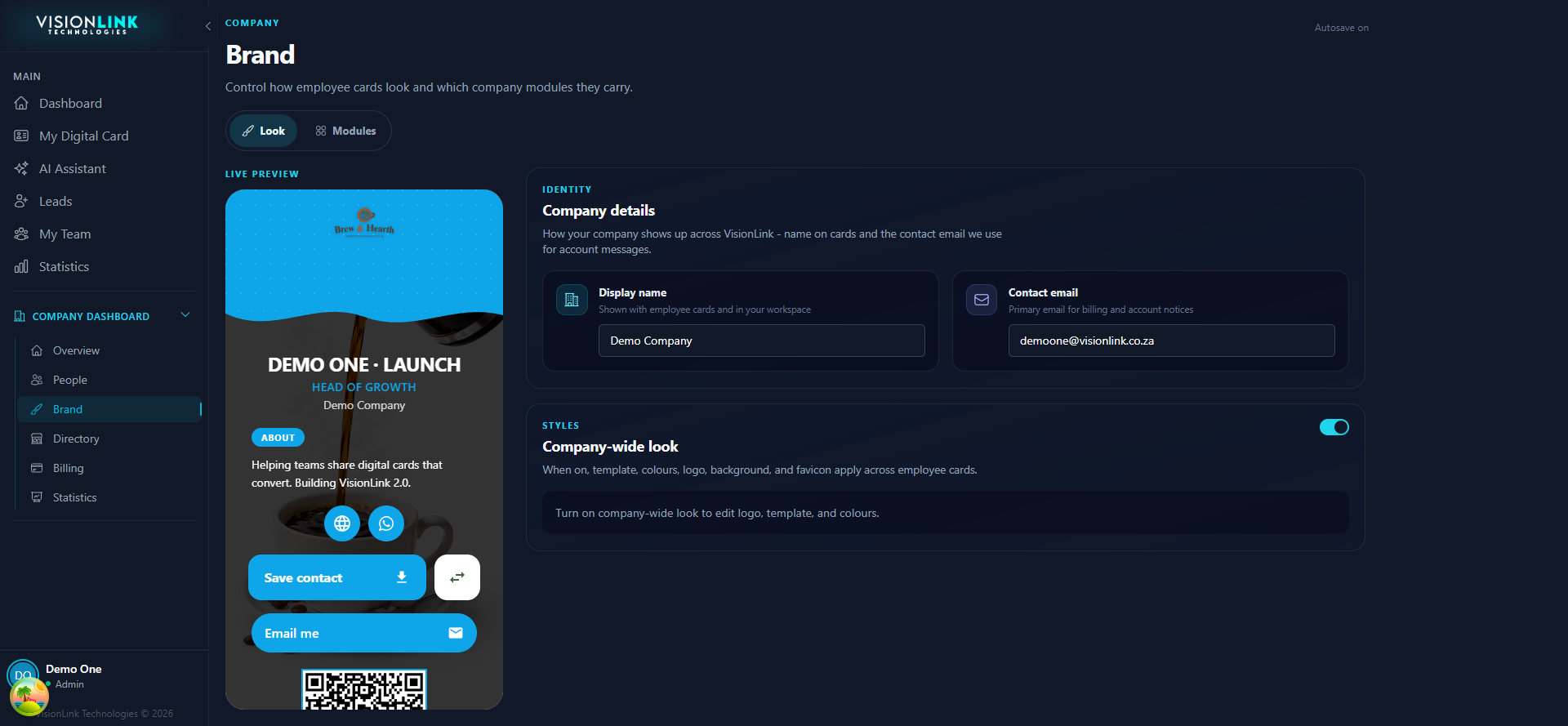
Open Company Dashboard, then Brand.
Fill Company details, then turn on Company-wide look to unlock the style controls.
Upload the company logo and set colours.
Pick a default template for new cards.