.png)
Brand every card in your company
Set the company look once in Brand, decide how much people can change, and push shared modules to every card.
What Brand actually does
Brand is the one screen that updates every employee card at once. Logo, colours, template, and shared modules apply to cards that already exist. You can set this before people join or months later — nobody has to redo their card.
Have these ready
- A transparent PNG logo that reads on a dark background
- Your primary brand colour as a hex code
- The contact email that should receive account notices
- A decision: may people change their own template and colours?
1. Fix the company details
Open Company Dashboard, then Brand. The Look tab opens on Company details. Display name is the company name printed on every employee card, and it is locked in each person's own editor for exactly this reason. Contact email is where billing and account notices go.
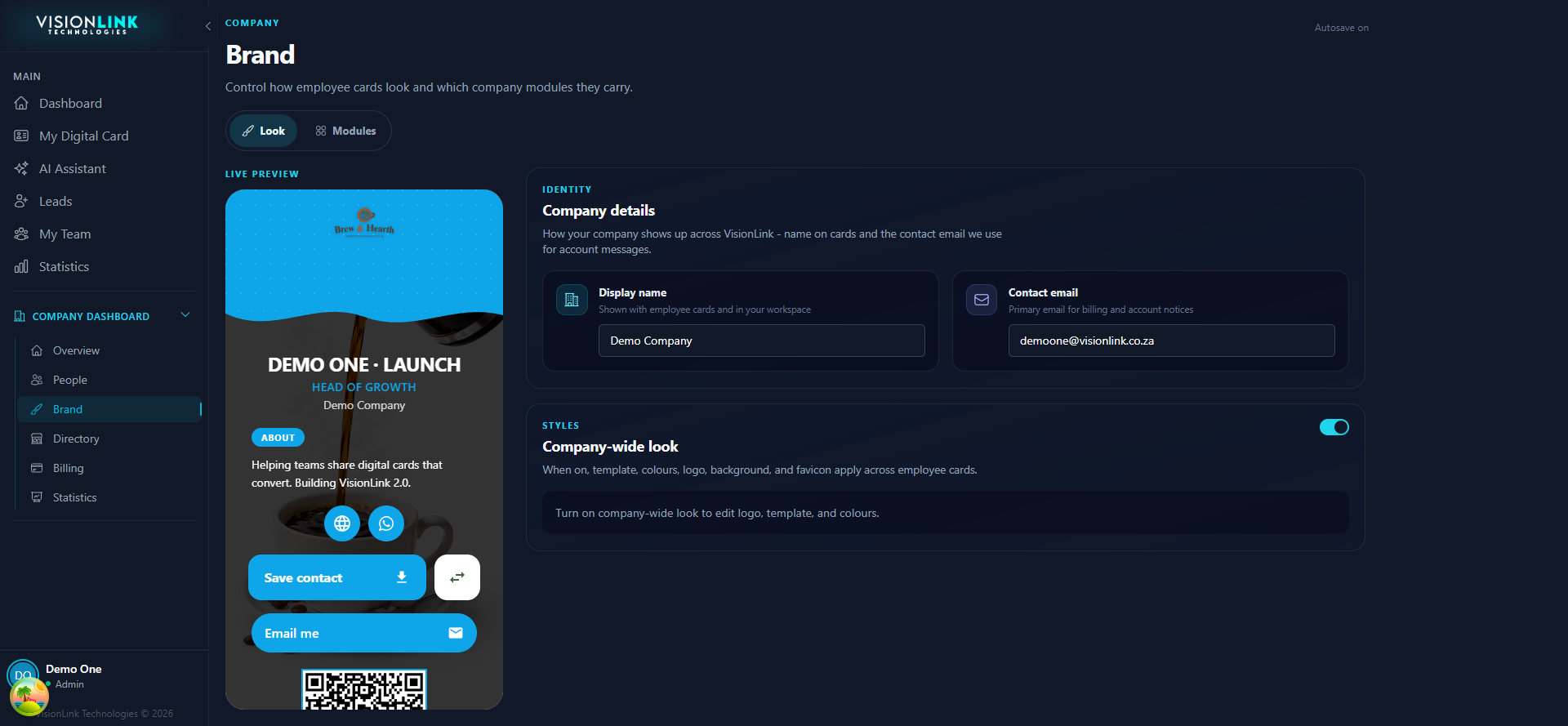
2. Turn on the company-wide look
Company-wide look is the master switch under Styles. While it is off, the logo, template, and colour controls stay greyed out and every person keeps whatever they picked. Turn it on and those controls unlock, and what you set applies across employee cards.
Flip the toggle
Styles, then the switch beside Company-wide look. The locked panel below it opens up.
Upload the logo
Transparent PNG. Check it against both a dark and a light template before you move on.
Pick the default template
This is the layout new cards start on, and the layout everyone gets if personalisation is off.
Set the colours
Buttons, text, and background. Read the preview at phone width and make sure the button text is still legible.
3. Push shared modules
Switch to the Modules tab. Each tile is a block that can appear on employee cards, filled in once by you instead of twenty times by them. A tile with a toggle on is live on cards. Open on a tile means it already has content.
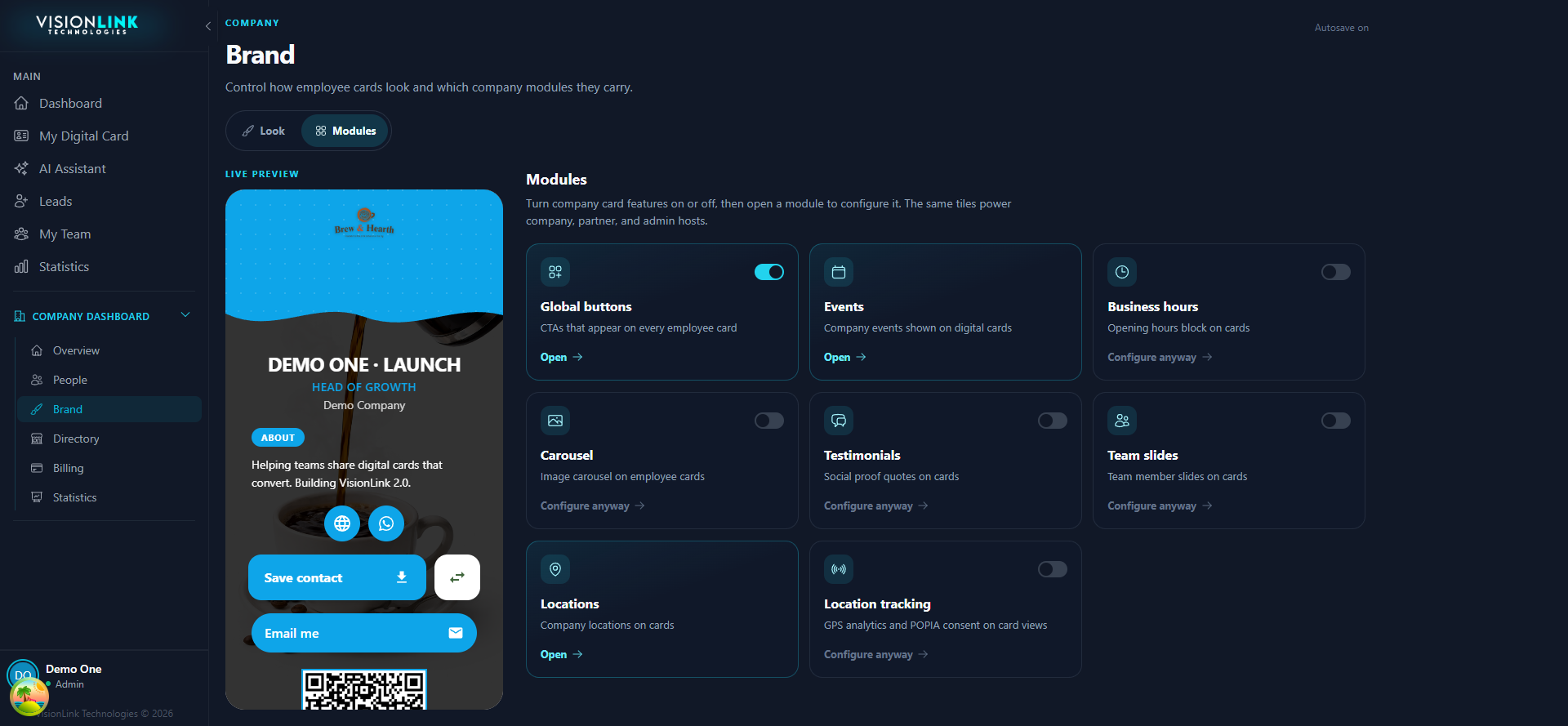
- Global buttons
- A support line, a booking page, or a shop link that belongs on every card.
- Business hours
- Retail, clinics, workshops. Anywhere people ask when are you open.
- Locations
- Offices and branches, entered once so nobody retypes an address.
- Events
- Conferences and open days the whole company is pushing.
- Testimonials
- Company-owned quotes. Separate from a person's own testimonials.
- Team slides
- Shows colleagues on a card so one contact opens a door to the rest.
- Carousel
- A shared gallery of work, premises, or product.
Where each one earns its place
4. Check it landed
Do not trust the preview alone. Open a real member card the way a visitor would and read it top to bottom on a phone-width window.
Before you call it done
- The logo is sharp, not a white box on a dark card
- Button text is readable against the button colour
- Shared modules show real content, not empty placeholders
- A person with personalisation off cannot break the look
- Someone other than you is an admin and can undo all of this