.png)
Publish your company page
Fill the public directory listing, clear the readiness checklist, and publish a page you can link to.
What the directory page is for
A personal card answers who is this person. The directory page answers what does this company do and who should I talk to. It is the page you link from a proposal, a tender, or a cold email, and it carries your people rather than replacing them.
1. Read the readiness panel
The panel on the right is the whole job in five lines. It counts what is done and what is missing, and it updates as you fill things in. Work it top to bottom instead of scrolling the form looking for gaps.
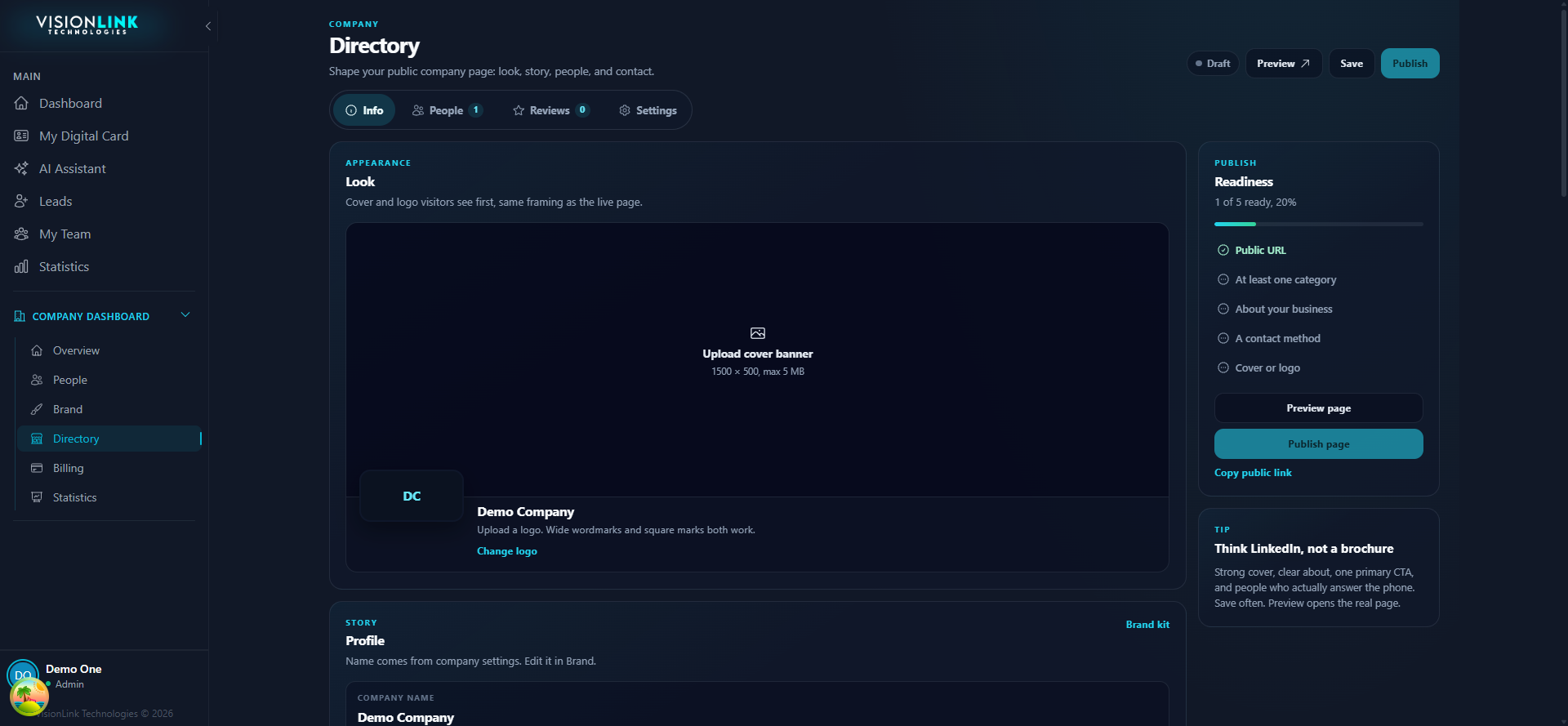
- Public URL
- The slug people will see. Short, obvious, and hard to mistype.
- At least one category
- What kind of business you are. This is how you get found.
- About your business
- A paragraph a stranger can read and understand.
- A contact method
- Phone, email, or both. A page with no way to reply is a dead end.
- Cover or logo
- The first thing on the page. A blank header reads as abandoned.
The five checks
2. Cover, logo, and story
The cover banner runs at 1500 by 500 and is the first thing a visitor sees, so give it something real: your premises, your team, your work. A stock gradient tells them nothing. The logo sits below it and both wide wordmarks and square marks work.
Upload a cover
1500 by 500, under 5MB. Keep important detail away from the edges, it crops on narrow screens.
Set the logo
Change logo under the banner. The company name beside it comes from Brand, not from here.
Write the about section
What you do, who you do it for, and what happens if someone gets in touch. Three short paragraphs beats one long one.
3. People, offerings, and reviews
The tabs across the top are the rest of the page. Info is the shell you just filled in. People, Reviews, and Settings each carry a count so you can see what is empty at a glance.
- People
- Who appears on the public page. Pick the ones who actually answer their phone.
- Offerings
- Your services or products, with enough detail to price a conversation.
- Reviews
- Social proof attached to the company rather than to one person.
- Settings
- The slug, categories, and visibility controls for the page.
What goes in each tab
4. Preview, then publish
Preview page opens the real thing, not a mockup, so read it the way a stranger would. When it holds up, Publish page makes it live and Copy public link gives you the URL to paste.
Before you publish
- Readiness reads five of five
- The about section has no placeholder text left in it
- Every listed person has a finished card behind their name
- The contact method reaches someone who checks it
- You have opened the preview on a phone-width window